First run
The access key
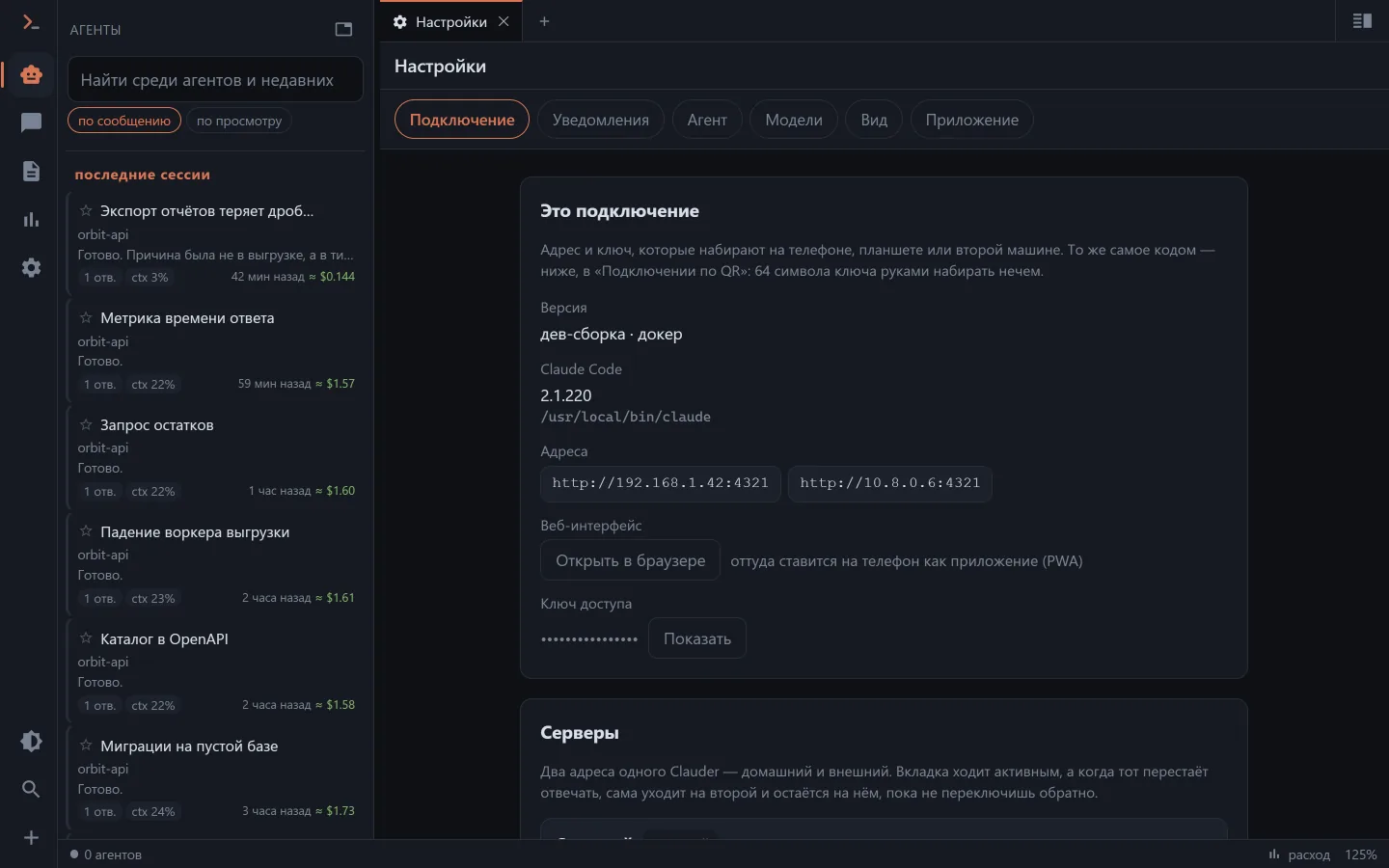
The only way into Clauder is a key. There is no login-and-password at all.
- In the app the key is created on the first run and lives in
config.json. To see it:clauder --print-configor the "This connection" card in the settings. - In docker the key comes from
API_KEYin.env— you set it yourself.
A key shorter than eight characters counts as switched off: that is deliberate, so that an "empty password" can't happen by accident.
Where the app keeps its settings: in a clauder-data folder next to the executable if it can write there (so it travels on a flash drive as a whole, favourites and titles included), otherwise in %APPDATA%\Clauder, ~/Library/Application Support/Clauder, ~/.config/clauder.
On your own machine the key isn't asked for — a connection over the loopback counts as yours.
Moving the address to the phone
There is no sane way to type a 64-character key on a phone, so the address and the key travel by QR code: the settings show the code, and the connection screen of a new client scans it.
The regular phone camera reads the code too: inside it is a link https://clauder.varyen.net/connect/#…. On Android it opens the app straight on the connection screen with the fields filled in; on an iPhone, and wherever the app isn't installed, it opens a page with "Open in the app" and "Open in the browser" buttons. The key travels in the part of the address that the browser never sends to the server, so the website doesn't get it. Apps older than 0.154 can't read this code — update them.
The code starts with the machine's local network address: VPN, WSL and virtual machine adapters go to the bottom of the list.
Moved to another address — joined a VPN, changed the port — and the code is rebuilt; old devices pick up the new address with the same scan.
Extra keys
The app window can issue named keys — one per device, revocable, without restarting the server. Such a key can have a scope: your own projects and "read only".
The first chat
The "💬 New chat" button starts with the question "Where to run it" — the server, a folder on your own disk through the browser, or a connected worker (on Android the same line picks the machine, down to the phone itself). Then come the three usual things: the directory, the model and the effort level. The directory is taken from the recent list or picked from the tree; the "+ New project" button does the same but starts with choosing a folder that has no sessions yet, and can create one.
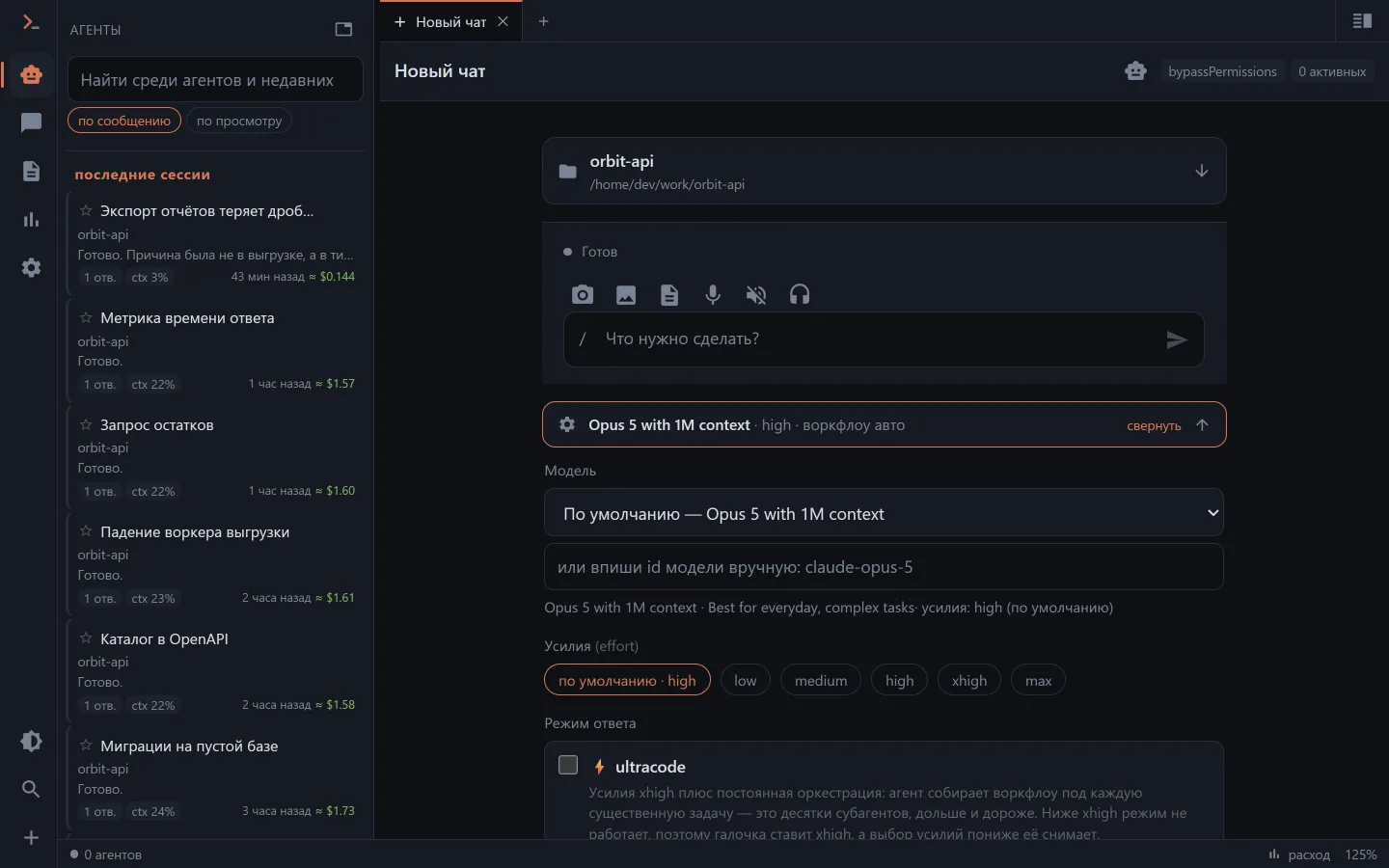
Once you send the first message, an ordinary JSONL appears in ~/.claude/projects/…, and the chat is immediately visible in the common list and in claude --resume in the terminal.
Details about the composer, slash commands and the model's questions — in Chat with the agent.
Signing in to Claude
Sessions are run by claude on the server machine, and you can sign in to it straight from Clauder: the /login command in the composer opens a window with an OAuth link and a field for the code, /logout signs out. This door used to open only next to trouble — an expiring token or a "Not logged in" error. You can also sign out from the settings — the Sign out button on the "Your own Claude account" card, see Access keys.
In the same settings, next to the CLI version, a "newer one is out · Update" line appears: the update runs with a bar and real percentages, not in silence. How Clauder itself updates is covered in Updating.
No Claude subscription
Signing in is optional. The second setup step and the home screen offer "Connect with an API key": Clauder also works with DeepSeek, OpenRouter, Kimi, Z.ai and MiniMax, paying for what you use. Once a cloud is connected, new chats go to it on their own. Details — Models and providers.
Settings: what is where
Settings are laid out like in VS Code: groups and sections on the left, exactly one section open on the right. On a phone it's a list, like the system settings: a tap opens a section, Back returns to the list. On an Android tablet or TV there are two panes, and you can move between them with the remote.
The search field above the list looks not only through section names but also through the text inside the cards — labels, hints, options. If it matched something other than the name, the found phrase is shown under it.
| Group | What's inside |
|---|---|
| Connection | address and key, a QR for the phone, the list of servers (home and external), the version and updates; in the app also network access, the tunnel, access keys, the bridge worker |
| Notifications | push toggles, the browser subscription, the plan-limit warning, the bot |
| Agent | default model, permission mode, allowed roots for cwd, the path to claude, addresses for hooks, MCP servers and plugins, the secret vault |
| Models | what new chats run on, clouds with an API key — DeepSeek, OpenRouter, Kimi…, your own servers — llama.cpp, LM Studio; speech |
| Appearance | theme, interface scale, feed mode, images |
| Application | moving settings between clients; in the desktop build also autostart, tray, hotkey |
Everything that lives in .env under docker is edited in this window in the app — no need to open the file by hand.
Moving settings to a new client
The theme, interface size, images and notifications — along with titles, favourites and hidden items — travel to a fresh client on its first connection: it offers to take them from the server, either replacing its own or merging. There is a file route too — "Save" and "Load" buttons in the settings.
Favourites, your own titles and "read" marks live on the server anyway, so every client sees them at once.
What next
- Access from outside — how to reach the machine from away.
- Notifications — so you don't have to keep Clauder open.
- Claude Code hooks — to see foreign sessions live and answer their questions.